

Payment Condition
Node Type
Description
Proceed to the next stage of automation if and only if certain payment conditions are true.
When to Use
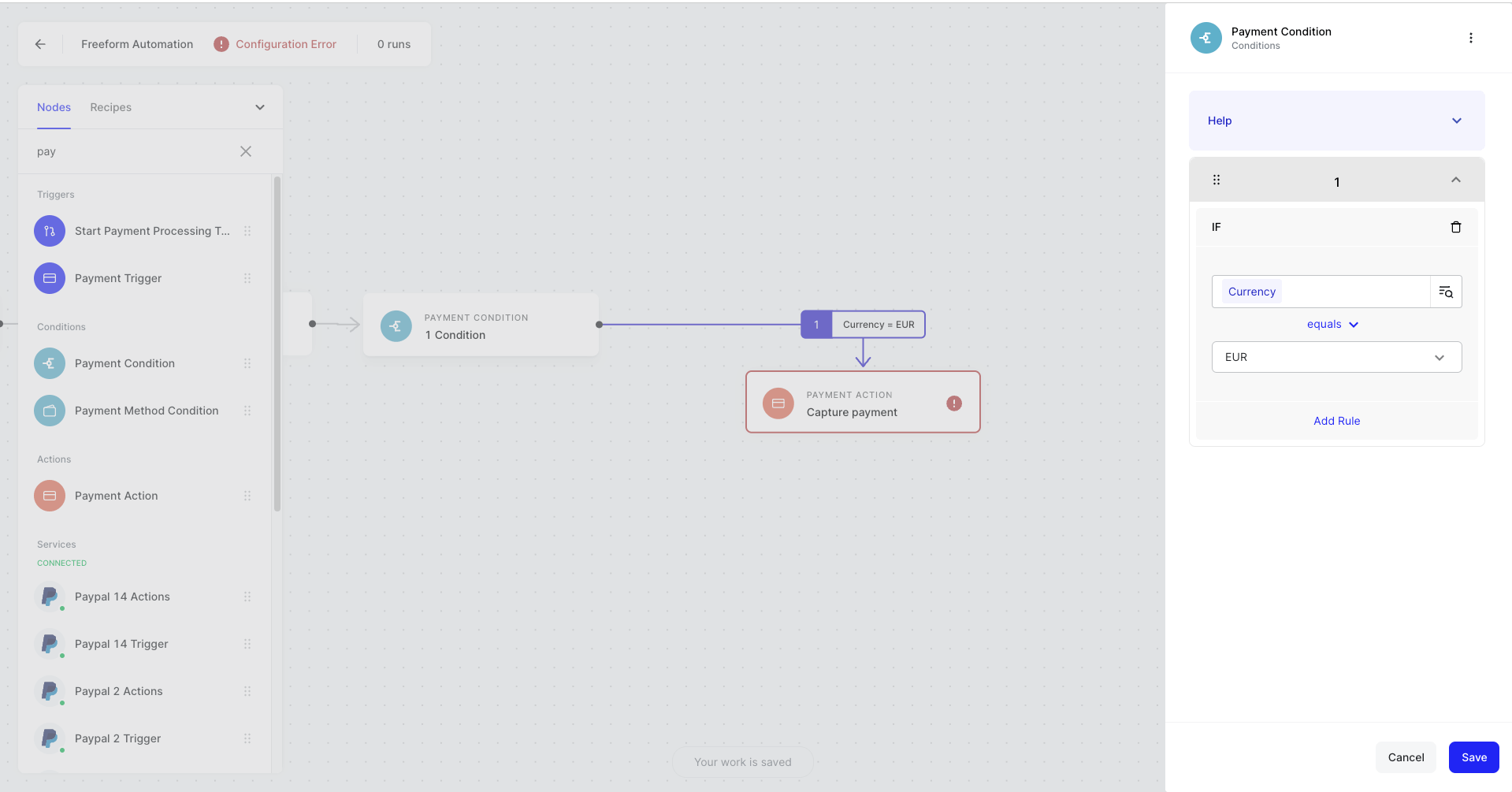
Use when you want to do something only if certain payment conditions are met. To use properly use this node, a payment needs to be declared before using the Payment Condition node, this can be a Payment Trigger or a Payment Processing Trigger.
How to Use
- Drag on the Payment condition to your no-code canvas
- Connect your Payment condition to the next node in your automation to create at least one logical branch
- Click on Payment condition node to see the configuration modal
- Click IF to create conditional logic
- Define a branch by selecting the object selector icon
- Choose an Payment object you wish to create a condition rule about
- Select your conditional argument (e.g., greater than, equals, in-list)
- If applicable, complete your conditional argument by providing a value to compare your object to
- Repeat for any other branches
- Hit save
Example Use Cases
- When a payment fails at any connected PSP, notify an internal user / production support to troubleshoot to avoid lost sales.
- When decline reason = insufficient funds, send a message to the user to consider using another card.
- When currency = USD, route transaction to a Payment processor that provides better FX or pricing to avoid cross-boarder.