

Intent Condition
Node Type
Description
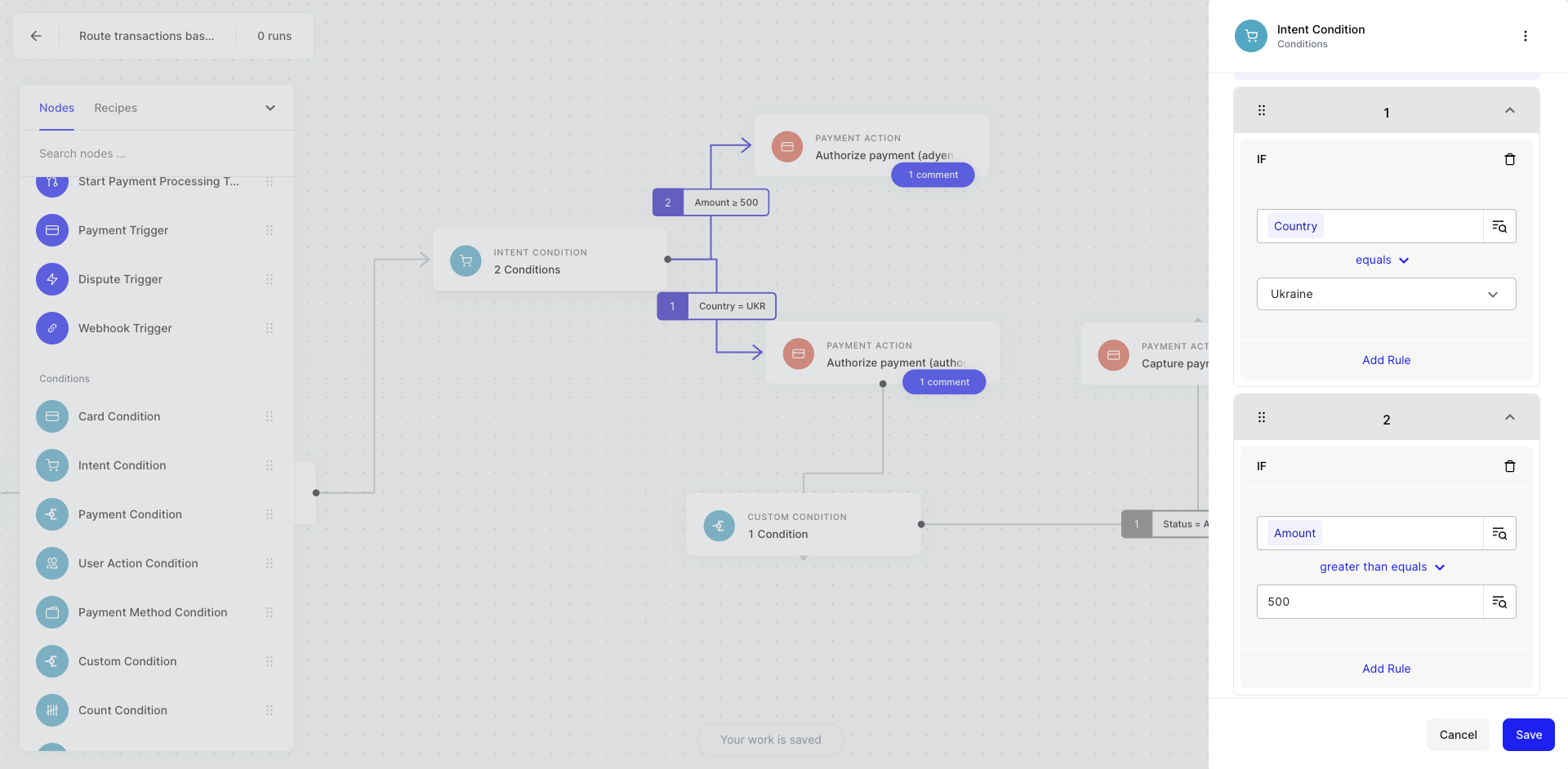
Proceed to the next part of the automation if a certain parameter of the Intents API call is correct. Your Intents API call contains many attributes of a user’s checkout journey from initiating an Intent (landing on checkout), to completing a transaction.
When to Use
Use when you only want to advance your automation based on a users’ attributes, actions or progress during checkout. Click here to learn about the Intent API and all the rich data you can leverage to track your users’ progression through your checkout.
How to Use
- Drag on the Intent condition to your no-code canvas
- Connect your Intent condition to the next node in your automation to create at least one logical branch
- Click on Intent condition node to see the configuration modal
- Click IF to create conditional logic
- Define a branch by selecting the object selector icon
- Choose an Intent object you wish to create a condition rule about
- Select your conditional argument (e.g., greater than, equals, in-list)
- If applicable, complete your conditional argument by providing a value to compare your object to
- Repeat for any other branches
- Hit save
Example Use Cases
- Trigger a cart abandon email to the user when Intent Condition =
Inactive